
Bulk adding connects many mailboxes at once. Mailbox owners don’t need to do anything. Instead, you sign in once with a Microsoft 365 admin account.
To add just one mailbox, see How do I add a single Microsoft 365 mailbox?
Before you start
Section titled “Before you start”You need a Microsoft 365 account that is either:
- A Global Administrator, or
- A user with the Privileged Role Administrator role.
To set up a separate admin account for this, or to limit which mailboxes timetoreply can read, see How do I limit which Microsoft 365 mailboxes timetoreply can access?
Add your mailboxes
Section titled “Add your mailboxes”-
Click Entities in the bottom-left corner.
-
Go to Mailboxes and click Add mailboxes as admin.
-
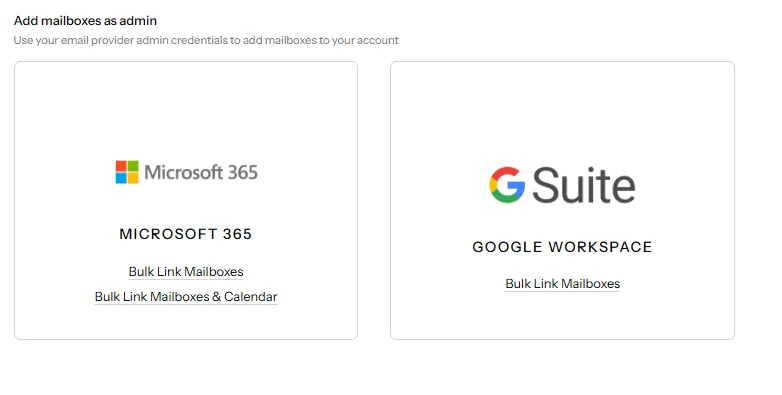
On the Microsoft 365 card, choose an option:
- Bulk Link Mailboxes connects the mailboxes.
- Bulk Link Mailboxes & Calendar also syncs full-day Out of Office events from Outlook calendars to each person’s leave days in timetoreply, so their stats take days off into account.
-
Sign in to Microsoft 365 with your admin account and accept the permissions.
-
Back in timetoreply, tick the mailboxes you want to add.
-
Click Save Mailboxes.
Disconnect the admin account
Section titled “Disconnect the admin account”To remove the admin account used for bulk adding:
- Click your name in the bottom-left corner and select Settings.
- Go to Advanced Settings → Microsoft Credentials.
- Find the admin account under Credentials for and click the trash icon.