
Users are people who can log in to timetoreply to view data. You choose a role for each user, which controls what they can see and do.
A user’s mailbox doesn’t have to be tracked for them to be a user. The only exception is the Company Agent role.
User roles
Section titled “User roles”There are 4 roles:
| Role | What they can see and do |
|---|---|
| Company Administrator | Full access, including account settings, billing, adding or removing mailboxes, and managing other users’ access. |
| Company Manager | All mailboxes, teams and group mailboxes. No access to billing. Other pages, including company settings and adding or removing mailboxes, depend on their page permissions. |
| Restricted Manager | Only the mailboxes, teams, group mailboxes and contact groups you give them. No access to billing. Same page permission limits as a Company Manager. |
| Company Agent | Only their own mailbox’s performance. Their mailbox must be tracked in timetoreply. No access to settings or billing, and can’t see who else is on the system. |
Invite a user
Section titled “Invite a user”- Click Entities in the bottom-left corner.
- Go to Users (account access) and click Invite a user.
- Choose the user’s role and set their permissions.
This walkthrough shows how to add a user and manage their permissions:
Permissions for managers
Section titled “Permissions for managers”Page permissions
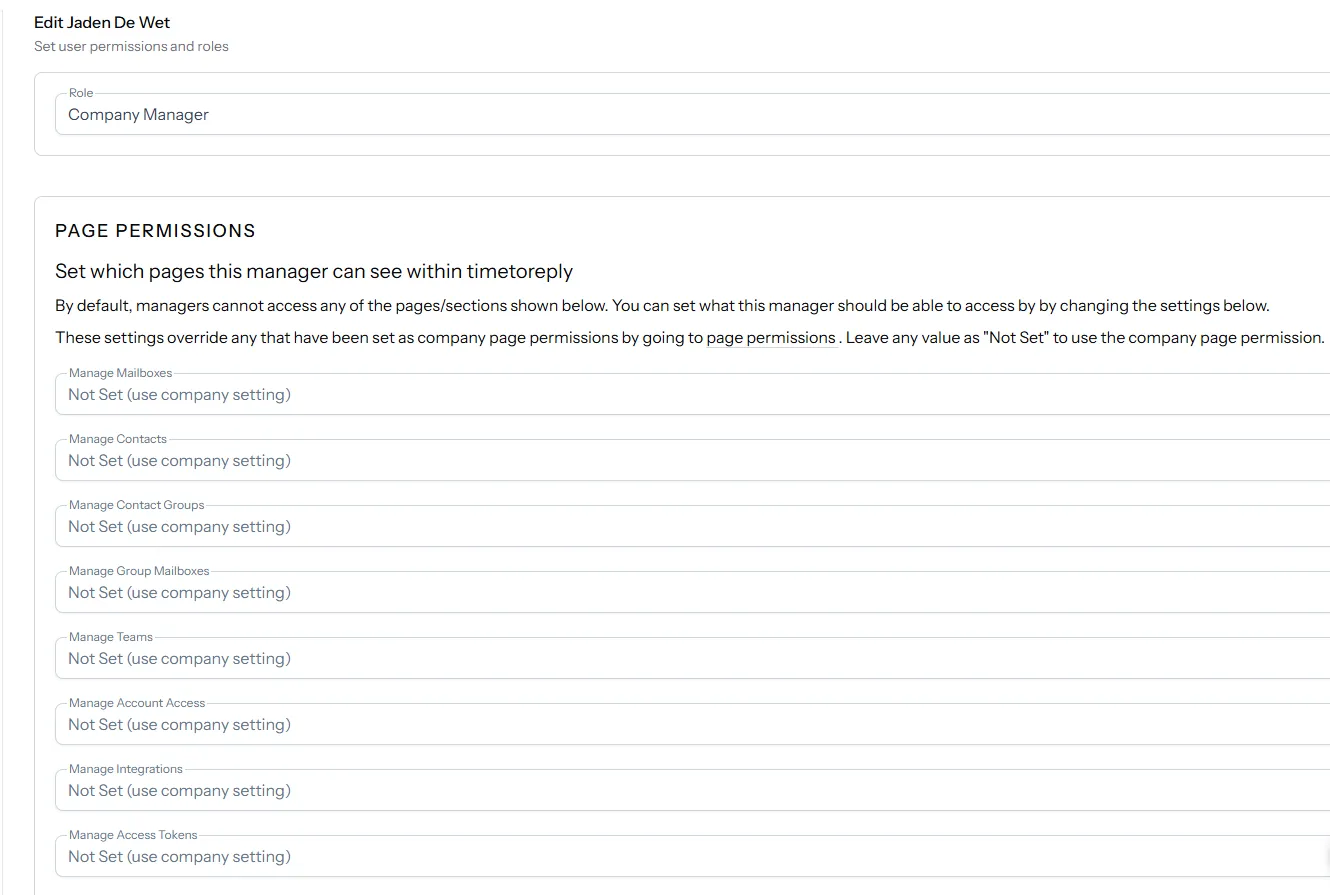
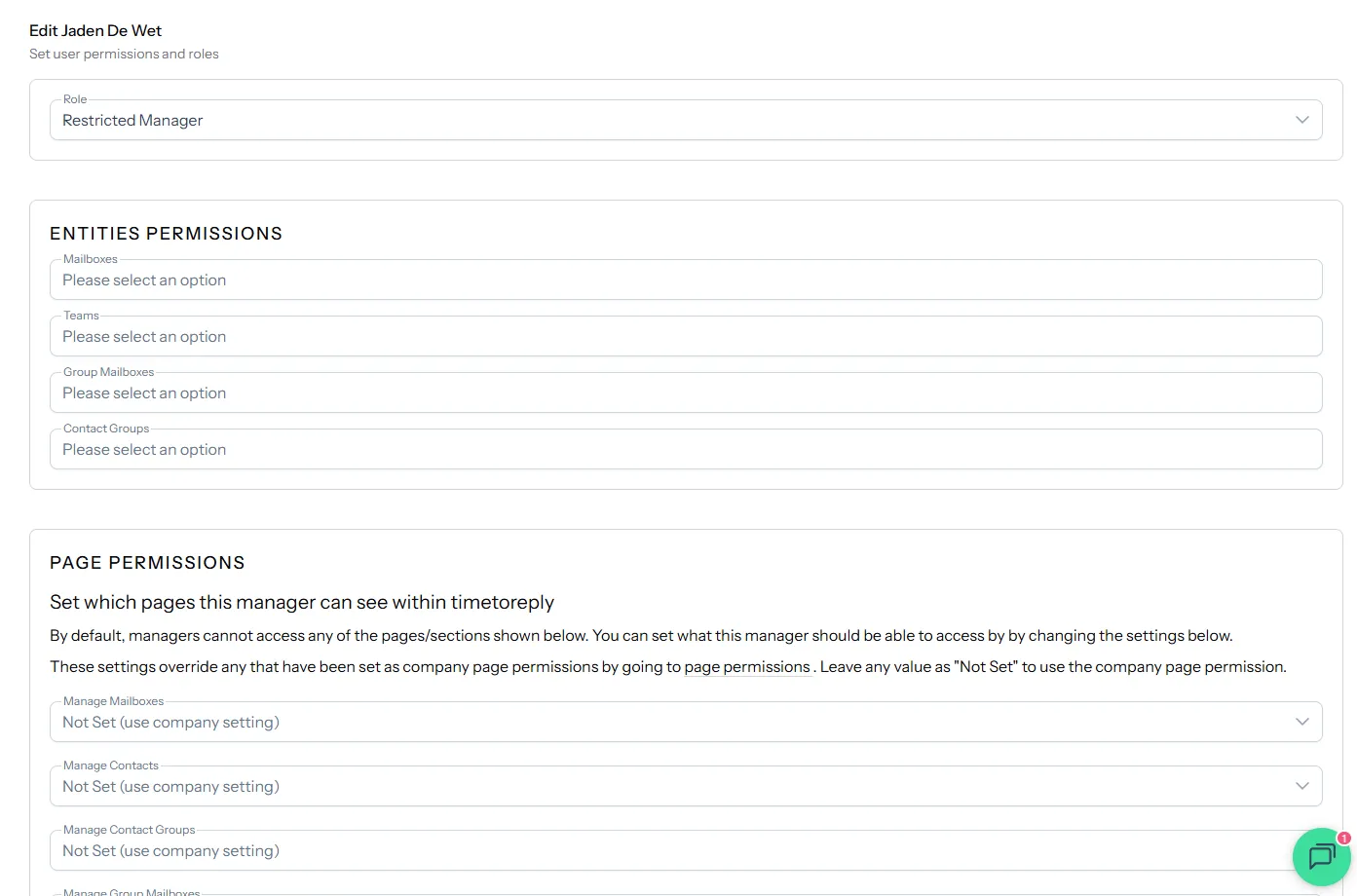
Section titled “Page permissions”Company Managers and Restricted Managers have page permissions. These set which pages and sections the manager can use, such as Manage Mailboxes or Manage Teams.
Each page permission can be Allowed, Denied or Not Set (use company setting). Not Set uses your company’s page permission instead, so the manager has access if the company setting is Allowed. For example, to let a manager manage mailboxes but not message filters, set Manage Mailboxes to Allowed and Manage Message Filters to Denied.
Entity permissions (Restricted Managers only)
Section titled “Entity permissions (Restricted Managers only)”Restricted Managers also have entity permissions. These choose which Mailboxes, Teams, Group Mailboxes and Contact Groups they can view.
Edit an existing user
Section titled “Edit an existing user”You can change a user’s role and permissions at any time:
- Click Entities in the bottom-left corner and go to Users (account access).
- Find the user, open the ⋮ menu, and click Edit Role and Permissions.
- Change their role or permissions, then save.
This walkthrough shows how to edit an existing user: